
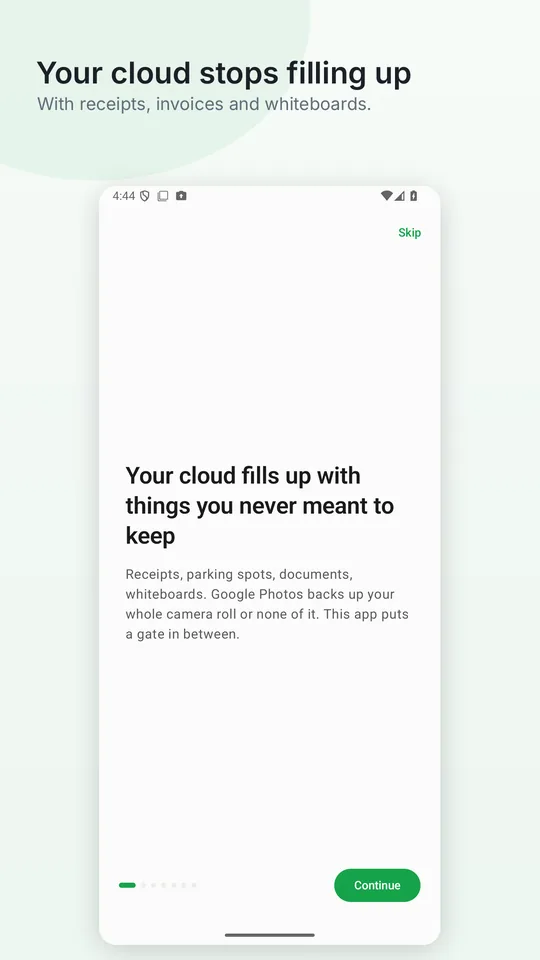
Your cloud fills up with photos you never meant to keep
The parking ticket, the receipt, a meeting whiteboard. They all land in the same camera folder, and Google Photos only backs up whole folders. Snapgate puts a gate in between: it asks about each photo the moment you take it.
Android 11 or later · One-time purchase, no subscription
Reviewed by Android Police“I stopped Google Photos from backing up everything with this app” · Read the article
Also featured on: HowToMen · Monitor · Gadgets One · Bug.hr · 9TUENG
What it looks like
The problem isn't your camera, it's that Google Photos decides by folder
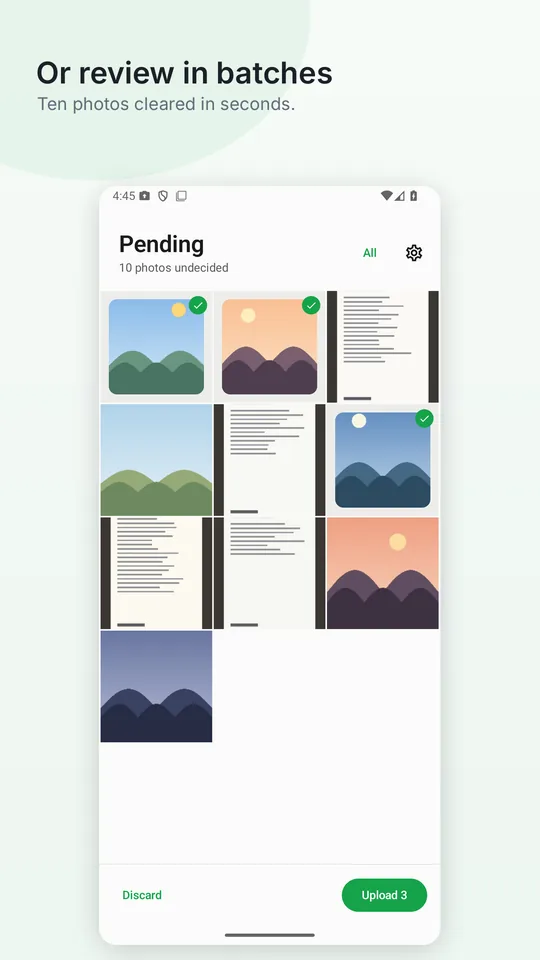
Google Photos lets you pick which folders get backed up and upload single photos by hand. But everything you shoot goes into the same camera folder, so the receipt travels with the holiday photos, and picking by hand afterwards is exactly what nobody does. That's why your storage fills with things you photographed to look at for ten minutes.
There are two ways to stop it filling up: review your camera roll regularly and delete by hand — which nobody does — or decide in the moment. Snapgate is the second one.
Four steps, and only one is yours
It all happens in the seconds after the shutter, while you still remember why you took that photo.
You take the photo
With your usual camera. Snapgate replaces nothing and gets in the way of nothing.
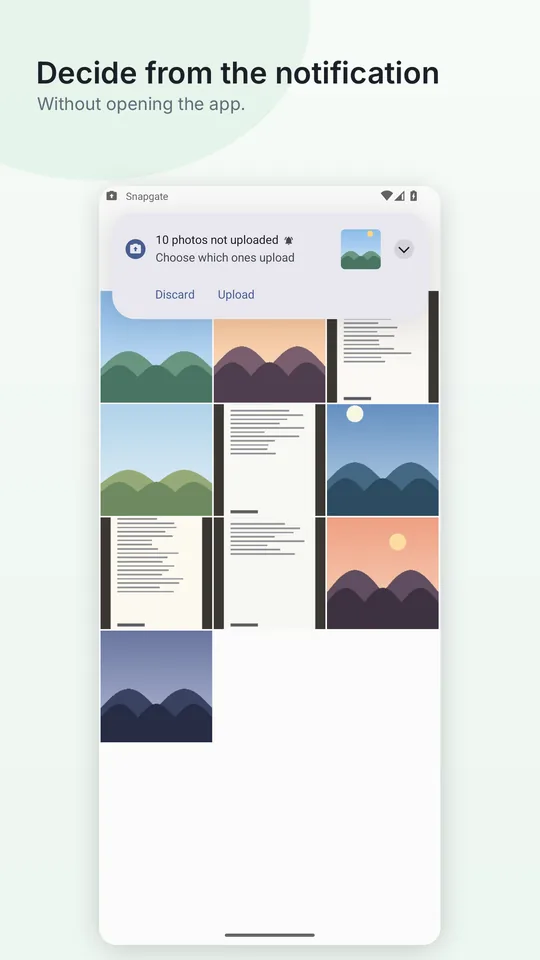
A notification arrives
Under half a second after the system registers the image, with a thumbnail so you can see what you're deciding about.
You tap Upload or Discard
Right there in the notification. No need to open the app or confirm anything else.
Discarded photos stay on your phone
They are not deleted and not uploaded: they simply never take up space in your Google account.
And when you don't want to decide every time
Because there are stretches where being asked is worse than being helped.
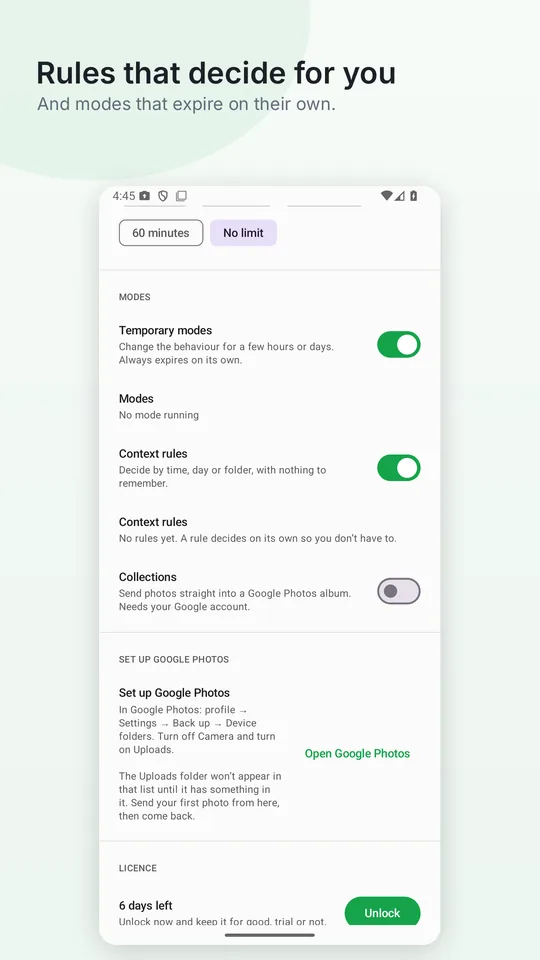
Temporary modes
"Don't upload anything for eight hours." "Upload everything for four days, I'm travelling." They always expire on their own, so you can't leave one running by accident.
Context rules
Decide by time of day, day of week or folder. Photos taken during work hours don't have to end up in your personal account.
Collections
Send what you approve straight into a specific album in your library, skipping the camera roll entirely.
Decision window
A photo is only offered during its first few minutes. If you don't answer, it stays on the phone and stops bothering you.
Negligible battery use
0.02 seconds of CPU per minute in the background, measured. With the screen off it does nothing at all.
Six languages
Spanish, English, Portuguese, French, German and Italian — including the plural forms almost nobody gets right.
What Snapgate cannot do
Snapgate has no servers. There is nowhere to send your photos, because no such place exists.
When you connect your Google account, the app requests a specific permission that only lets it add photos to your library. It cannot read them, cannot modify them and cannot delete anything you already have. That limitation isn't our promise: Google enforces it, and you can check it on the consent screen before you accept.
Location, if you turn on place-based rules, is read at the moment you take a photo and is never stored or sent anywhere. There is no analytics, no tracking and no advertising.
The only destination a photo ever reaches is your own library, and only when you ask for it.
Fair questions
Can't Google Photos already choose what gets backed up?
Partly. You can turn backup on or off per folder and upload single photos by hand. What it doesn't do is ask about each new photo: everything from the camera goes together, and choosing later means remembering to. Snapgate asks in the moment, while you still know why you took it.
Do I have to turn off Google Photos backup?
Yes, and it's the one step no design can avoid. While it's on, Google Photos uploads your whole camera roll no matter what Snapgate does. It's a single switch and the setup walks you to it.
What if I don't answer the notification?
Nothing bad. The photo stays on your phone, isn't uploaded, and after a few minutes it stops asking. Configurable, five minutes by default.
Does it delete my photos?
Never. Discard means "don't upload this"; the photo stays in your camera roll exactly as before.
Why does it need a permanent notification?
Because Android only tells running apps about a new photo. It's the price of finding out immediately instead of every fifteen minutes. You can hide it from the system settings.
Is it a subscription?
No. Fourteen-day trial, then a one-time unlock.